
Keeping a Laptop Running Well Over the Long Haul
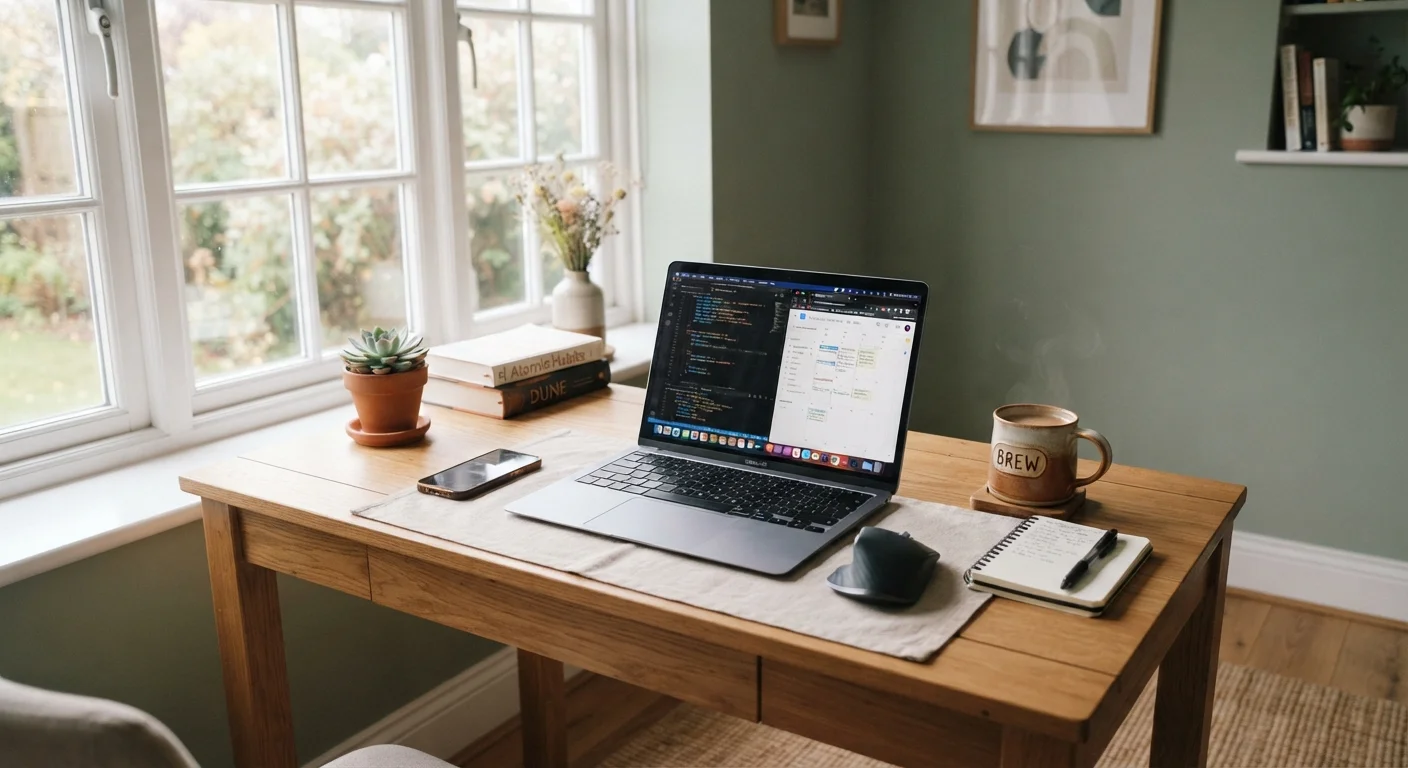
Photo credit: ResultsPoint.net | Find The Required Information
In this article
Simple, non-technical habits that extend your laptop's useful life — from battery care to software upkeep — without needing a technician.
Key Takeaways
- Keeping your laptop cool and clean is one of the most effective ways to extend its lifespan.
- Charging habits matter — avoid leaving your laptop plugged in at 100% for extended periods.
- Regular software updates and storage management keep performance from degrading over time.
- Physical handling and storage choices protect both the screen and internal components.
- Most laptop maintenance requires no technical skills — just consistent, small habits.
Why Laptops Slow Down — and How to Stay Ahead of It
Most laptops don't suddenly fail — they gradually wear down through a combination of neglect, heat buildup, and software clutter. The good news is that the majority of what shortens a laptop's life is preventable without any technical know-how. Think of it like routine home maintenance: small, consistent attention pays off far more than occasional panic repairs.
The practices below apply to most laptops regardless of operating system or age. They won't require opening the machine or downloading anything complicated.
Battery Care: The Habit Most People Skip
Laptop batteries wear out through charge cycles — each full drain-and-recharge counts as one cycle. Lithium-ion batteries (the type in nearly every modern laptop) are designed for a limited number of these cycles before capacity noticeably drops.
300–500
Typical full charge cycles before battery capacity drops noticeably
Most lithium-ion laptop batteries are rated for 300 to 500 full charge cycles before holding noticeably less charge, according to general industry specifications.
4–6 years
Average useful lifespan of a well-maintained laptop
With consistent care, many laptops remain performant for four to six years or longer; poor maintenance habits can cut that window significantly shorter.
The single most impactful habit: avoid routinely letting the battery drain to zero or staying plugged in at 100% for days at a time. Keeping the charge somewhere in the 20–80% range during normal use puts less stress on the battery. Many laptops now include a built-in battery health or charge-limit setting in their system preferences — worth checking if you leave your machine plugged in at your desk regularly.
Check Your Laptop's Built-In Battery Settings
Many laptops — including those running Windows and macOS — now include a battery health management feature in system settings. This option can automatically limit maximum charge to reduce long-term wear. Search for 'battery' in your system settings to see what's available on your specific machine.
Heat, Dust, and Physical Care
Heat is the quiet enemy of laptop longevity. When the internal fan vents are blocked — by a soft surface like a bed or couch cushion, or by accumulated dust — the processor and battery run hotter than they should, which degrades components over time.
A few straightforward habits help here:
- Use your laptop on a hard, flat surface whenever possible to keep the bottom vents clear.
- Every few months, use a can of compressed air to blow dust out of the vents (without opening the machine).
- Store the laptop in a sleeve or bag when not in use — screens crack and hinges weaken from casual bumps in a backpack.
- Avoid eating or drinking directly over the keyboard; liquid damage is one of the most common and costly laptop repairs.
“The most common reason a laptop feels old before its time isn't the hardware — it's the accumulated neglect of small maintenance habits that compound over months and years.”
— Consumer Technology Association, Trade organization representing the U.S. consumer electronics industry
Software Upkeep: The Other Half of the Equation
Hardware care only goes so far if the software side is ignored. A laptop loaded with unused programs, a full hard drive, and months of skipped updates will feel sluggish no matter how carefully you've handled it physically.
Keep these habits in rotation:
- Install system updates promptly. Operating system updates often include performance improvements and security patches, not just new features.
- Uninstall software you don't use. Programs running in the background — especially at startup — consume memory and processing power.
- Keep at least 10–15% of your storage drive free. When storage fills up, the system struggles to manage temporary files and slows noticeably.
- Restart regularly. Leaving a laptop in sleep mode for weeks without a full restart allows temporary files and memory usage to accumulate.
Just as regular car maintenance prevents bigger mechanical problems down the road, consistent software upkeep prevents the performance creep that makes people think their laptop is simply too old to use.
When to Call a Professional
Some issues go beyond what everyday habits can fix: a swollen battery, a screen with dead pixels, or a machine that won't turn on despite being charged are signs that professional service may be needed. Most laptop manufacturers and many local repair shops offer diagnostics. Attempting to open a laptop yourself to replace components can void warranties and, in some cases, cause additional damage — it's worth checking your warranty status before doing anything hands-on.

Author
Tech Editorial Team
Tech Editorial Team is the collective byline for our editorial team and contributor network. Articles published under this byline or an editorial pen name are researched, written, and reviewed according to our editorial standards for clarity, consistency, and independence before publication.
View all articles →