
Setting Up a New Smartphone Without Losing Anything from the Old One
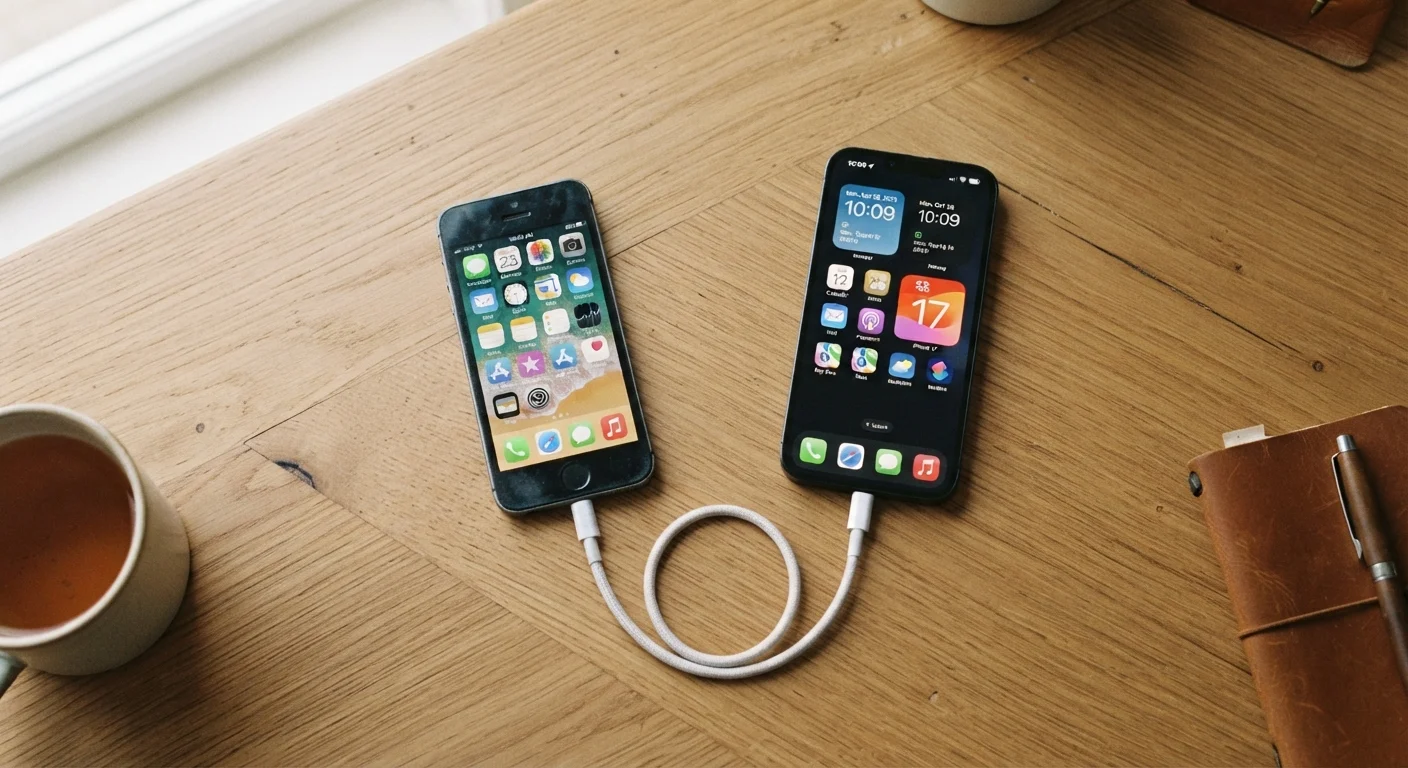
Photo credit: ResultsPoint.net | Find The Required Information
In this article
Step-by-step guidance on migrating contacts, photos, and apps when switching to a new phone, covering both iPhone and Android transfer options.
Key Takeaways
- Back up your old phone before doing anything else — this is the single most important step.
- iPhone and Android both offer built-in tools to move data to a new device without third-party apps.
- Contacts, photos, and app data can all transfer, but some apps require manual re-login afterward.
- Switching between iPhone and Android takes extra steps compared to staying on the same platform.
- Give yourself extra time the first day to verify everything transferred correctly before wiping the old phone.
Why This Process Deserves a Little Planning
Getting a new phone is exciting — but the hour between unboxing and actually using it is where things can quietly go wrong. Contacts disappear, years of photos seem to vanish, or apps refuse to open. In almost every case, these problems come from skipping or rushing the backup step, or from setting up the new phone before telling it where to pull data from.
The good news is that both Apple and Google have made this process far more reliable than it was even five years ago. Built-in tools handle the heavy lifting, and you don't need to buy special software or pay anyone to do this for you. You do need to know which tool to use for your situation — and that's exactly what this guide covers.
What you will need
If you're also making a bigger change at the same time — like switching your home internet service — a little advance planning goes a long way there too. Our checklist for switching internet providers can help you avoid surprises on that front.
What You'll Need Before You Start
iCloud Backup (iPhone)
Stores a full snapshot of your iPhone's data — photos, contacts, app data, settings — in Apple's cloud so your new iPhone can restore from it.
Google One / Google Backup (Android)
Backs up your Android phone's contacts, apps, call history, and settings to your Google account for easy restore on a new Android device.
Move to iOS app (Android to iPhone)
A free app that moves contacts, photos, messages, and more from an Android phone to a new iPhone over a private Wi-Fi connection.
Google Drive app (iPhone to Android)
Lets you export iPhone contacts, calendar events, and photos into your Google account before switching to a new Android phone.
USB-C or Lightning cable
Enables a direct, faster wired transfer between devices on platforms that support it (such as iPhone-to-iPhone via Quick Start).
Back up your old phone completely
iPhone: Go to Settings → tap your name → iCloud → iCloud Backup → Back Up Now. Wait for it to finish before moving on.
Android: Go to Settings → System → Backup → turn on Back up to Google and tap Back up now. Steps vary slightly by phone brand, but the option is usually under System or Accounts.
Choose your transfer method
The right method depends on which platforms you're moving between:
- iPhone to iPhone: Use Apple's built-in Quick Start feature — hold both phones near each other during new phone setup and follow the on-screen prompts.
- Android to Android: Most Android phones prompt you during setup to copy data from your old device via a cable or nearby connection. Follow the setup wizard.
- Android to iPhone: Install the free Move to iOS app on your Android phone before starting iPhone setup, then select it as your transfer method when prompted.
- iPhone to Android: Use Google Drive on your iPhone to export contacts and photos first, then sign in to your Google account on the new Android device.
Power on the new phone and start setup
Turn on your new phone. Both iPhone and Android walk you through a setup wizard. When asked how you want to transfer data, choose the method you selected in Step 2 rather than setting it up as a brand-new device.
Keep both phones close together, connected to the same Wi-Fi network, and plugged in if possible. Large transfers can take 20–60 minutes depending on how much data you have.
Sign in to your accounts and verify your data
Once the transfer completes, sign in to your primary account (Apple ID or Google) if not already done. Then check the following:
- Contacts: Open the Contacts app and scroll through to confirm names and numbers are there.
- Photos: Open your photo gallery and verify recent pictures transferred.
- Apps: Your apps should reinstall automatically, though some may need you to log back in.
- Text messages: iMessage history transfers with iPhone Quick Start; Android message history transfers vary by method.
Review privacy and security settings on the new phone
A new phone resets some permissions, so apps may ask again for access to your location, camera, or microphone. Take a few minutes to review which permissions each app actually needs.
This is also a good time to set a strong screen lock PIN or passphrase and re-enable features like Face ID or fingerprint unlock. For a deeper look at what each setting does, see our guide to your phone's privacy settings.
Wipe the old phone only after confirming everything transferred
Use your new phone for at least a full day before erasing the old one. This gives you time to notice anything that didn't come across. When you're confident, factory-reset the old device:
- iPhone: Settings → General → Transfer or Reset iPhone → Erase All Content and Settings
- Android: Settings → System → Reset options → Erase all data (factory reset)
This removes your personal data from the device before you sell, recycle, or trade it in.
Common Issues and How to Handle Them
Even when you follow the steps correctly, a few hiccups are common:
- Photos didn't all come over
- Check whether iCloud Photos or Google Photos is turned on. If your library is stored in the cloud rather than on the device itself, it will reappear on the new phone once you sign in and your connection syncs — this can take a few hours.
- An app is missing or won't open
- Some apps aren't available in the same version across regions or platforms. Reinstall from your app store. If an app's data didn't transfer (common with games or specialized tools), check whether the app has its own cloud sync or account system.
- Two-factor authentication is blocking you
- If you used your old phone as a verification device, you may need to use a backup code or contact the service's support team. Set up backup codes for important accounts before switching phones in the future.
One Thing Worth Doing Right Now
Even if you're not planning to switch phones soon, turn on automatic backups today. iCloud Backup and Google's automatic backup run overnight on Wi-Fi, so your data is always protected. It takes about two minutes to enable and could save you hours of headache later.

Author
Tech Editorial Team
Tech Editorial Team is the collective byline for our editorial team and contributor network. Articles published under this byline or an editorial pen name are researched, written, and reviewed according to our editorial standards for clarity, consistency, and independence before publication.
View all articles →