
The Notifications You Can Safely Turn Off Right Now
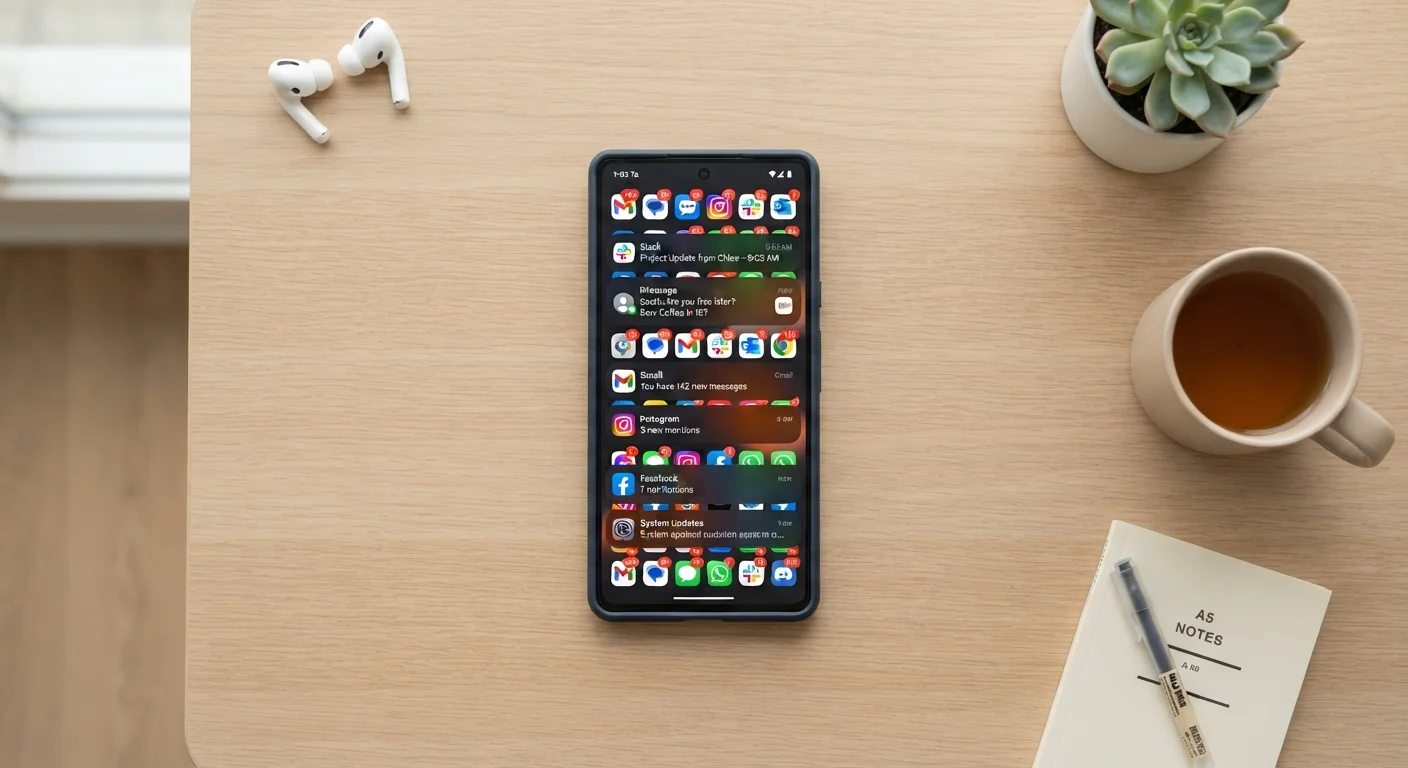
Photo credit: ResultsPoint.net | Find The Required Information
In this article
Most apps request far more notification access than they need. Here's how to identify the noise and reclaim your focus without missing anything important.
Key Takeaways
- Most apps request notification access by default, but few actually need it.
- Turning off non-essential notifications does not delete your account or data.
- Both Android and iPhone let you manage notifications app by app in Settings.
- A small group of apps — messaging, calls, calendar, banking — genuinely needs alerts.
- Reducing notification volume can meaningfully improve focus and reduce phone pickups.
Why your phone is noisier than it needs to be
Apps are designed to bring you back. Every notification is, at some level, a request for your attention — and the more often an app gets you to open it, the better it performs by the metrics its developers care about. That's not a conspiracy; it's just how the incentives line up. The result is that most phones, configured straight out of the box with a handful of downloaded apps, are delivering dozens of alerts a day that serve the app's interests far more than yours.
Research on smartphone use consistently finds that frequent notification interruptions increase the time it takes to return to a focused task — a cost that adds up across a workday. And because most alerts aren't genuinely urgent, the interruptions rarely justify the mental overhead they impose.
The good news: this is entirely fixable. Your phone already has all the controls you need. This guide walks you through a practical, no-drama audit that takes under 20 minutes.
What you will need
How to audit and cut your notifications
The goal isn't to turn off everything — it's to keep only the alerts that genuinely need your attention in real time. The steps below walk you through that process in order. You'll need your phone and a few minutes. No technical knowledge required.
Your phone's Settings app
The central place on both iPhone and Android to view and adjust notification permissions for every installed app.
Pen and paper (or a notes app)
Useful for jotting down which apps you want to keep, remove, or revisit later.
Open your notification settings
On iPhone, go to Settings → Notifications. You'll see every app that has ever requested permission to send you alerts, sorted alphabetically.
On Android, go to Settings → Notifications → App notifications. The exact label varies slightly by phone brand, but it's always inside Settings.
Identify your "must-have" alert apps
Before you start turning things off, mentally flag the apps that genuinely need to reach you in real time. A short working list for most people looks like this:
- Phone calls and voicemail
- SMS text messages
- Your primary messaging app (iMessage, WhatsApp, Signal, etc.)
- Calendar and reminder apps
- Banking or payment apps (for fraud alerts)
- Health or medication reminder apps, if you use them
Everything outside that list is a candidate for review.
Turn off notifications for shopping and retail apps
Retail and shopping apps are among the most aggressive notification senders. Sale alerts, cart reminders, and loyalty-point nudges rarely require your immediate attention. Tap the app in your notification settings and toggle Allow Notifications off entirely.
You can still open the app and shop whenever you want — turning off notifications does not affect your account, saved payment info, or order history.
Silence social media and news apps
Social media apps — including platforms like Facebook, Instagram, TikTok, and X — default to sending notifications for likes, comments, follows, trending topics, and more. Most of this can wait until you actively open the app.
News apps behave similarly: breaking-news alerts sound urgent but are rarely time-sensitive for most readers. Consider turning off all notifications and checking news on your own schedule instead.
Review games and entertainment apps
Mobile games frequently send "come back and play" reminders, energy-refill alerts, and event countdown notices. Streaming apps may notify you about new episodes or promotions. None of these require real-time attention.
Go through each one and disable notifications completely. If you want to revisit a game later, you'll remember it without a prompt — and if you don't, that's useful information too.
Do a final pass on utilities and miscellaneous apps
Check the remaining apps: weather apps, flashlight tools, QR scanners, food delivery apps (outside of active orders), fitness trackers with motivational nudges, and similar utilities. Ask one question for each: Does this app ever need to interrupt what I'm doing? If the honest answer is no, turn it off.
For food delivery apps, a reasonable middle ground is to keep notifications on only when you have an active order, then turn them off again afterward.
The "Allow" prompt isn't a contract
When an app first asks to send you notifications, tapping "Allow" isn't permanent. You can revoke that permission at any time in Settings without any effect on how the app itself works. Think of notification access like a door — you control whether it's open or closed.
Don't turn off security-critical alerts
Leave notifications on for your bank's fraud detection system, two-factor authentication apps (like an authenticator app), and any app tied to home or personal security. These alerts exist specifically because timing matters. If you're unsure whether a banking alert is legitimate, that's a separate question — see our guide on habits that quietly undermine your online security for context on spotting phishing.
Notification access is separate from app permissions
Notifications and app permissions (like camera or location access) are managed separately. Turning off notifications doesn't revoke any other app permission — it only stops the app from sending you alerts. If you want to review what else apps can access, our guide to app permissions explains each permission type in plain language.
For a broader look at the privacy controls on your phone, the guide to your phone's privacy settings covers related settings worth reviewing.
What to expect after you're done
Most people notice the difference within a day. The urge to check your phone decreases when the phone stops calling out for your attention. That said, there's an adjustment period — you may feel briefly anxious that you're missing something. That feeling typically fades within a few days as you confirm that nothing important slipped through.
If you use your phone while driving, reducing notifications has an obvious safety benefit too. Even a glance at a notification alert is a meaningful distraction. Our related piece on smartphone distraction at the wheel covers what the evidence actually shows about phone use and attention behind the wheel.
Notification settings aren't a one-time task. Whenever you download a new app and it asks permission to send you alerts, pause before tapping "Allow." Most apps don't need it — and now you know exactly where to go if you change your mind.

Author
Tech Editorial Team
Tech Editorial Team is the collective byline for our editorial team and contributor network. Articles published under this byline or an editorial pen name are researched, written, and reviewed according to our editorial standards for clarity, consistency, and independence before publication.
View all articles →