
Getting the Most Out of Your Home Internet Connection
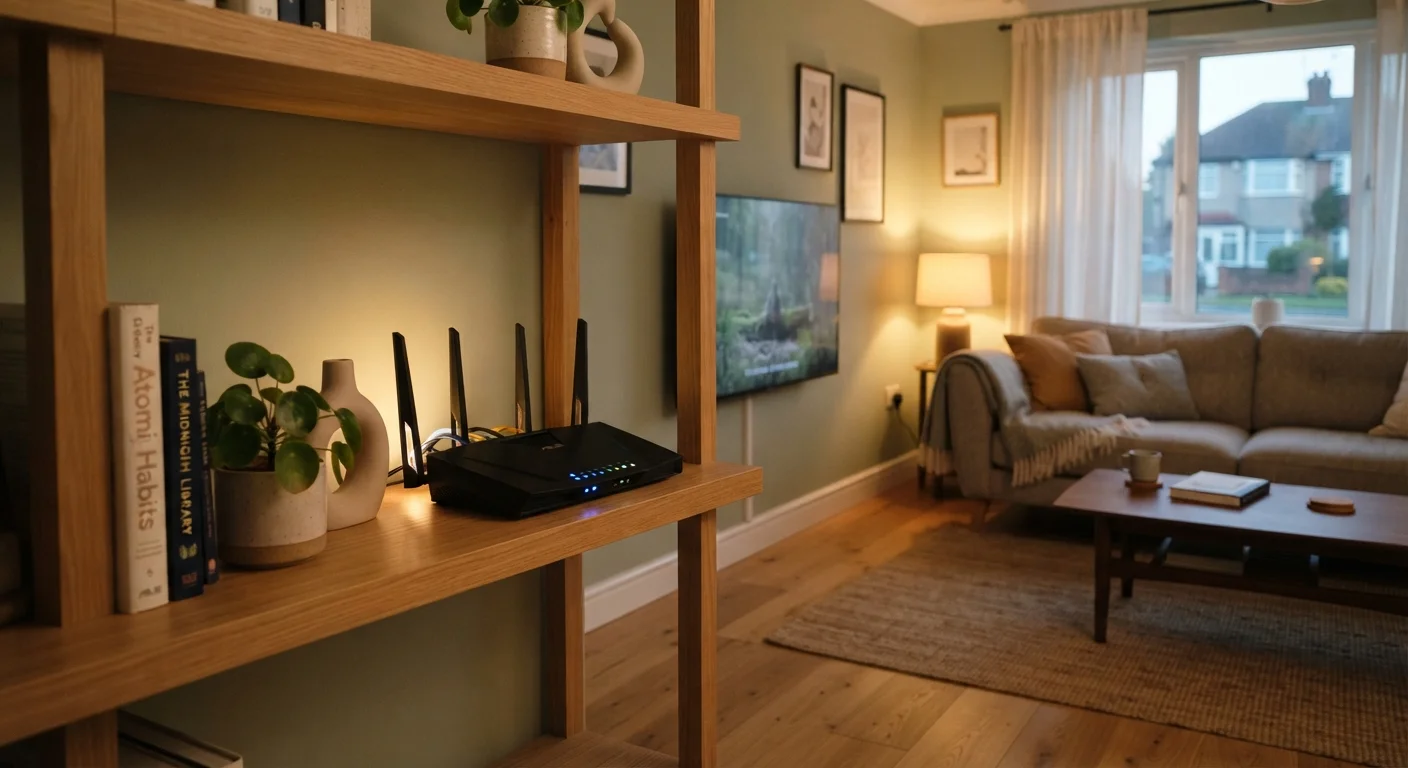
Photo credit: ResultsPoint.net | Find The Required Information
In this article
Router placement, device limits, interference sources — practical habits that help your home internet perform closer to its full potential.
Key Takeaways
- Router placement is one of the single biggest factors affecting Wi-Fi signal strength throughout your home.
- Too many devices sharing bandwidth at once can slow everyone down, even on a fast plan.
- Simple habits like rebooting your router regularly can meaningfully improve connection stability.
- Interference from appliances and walls can weaken your signal without you ever realizing it.
- Securing your network keeps uninvited users from quietly stealing your bandwidth.
Start With Your Router's Location
Most people plug their router in wherever the cable or phone jack happens to be — usually a corner of the house, near the floor, tucked behind furniture. That's one of the most common reasons Wi-Fi feels weak in half the home.
Your router broadcasts signal in all directions. Placing it in a central location, elevated off the floor, and away from walls gives that signal the best chance of reaching every room. Think of it like a lamp: put it in the middle of the room and everything gets light; shove it in a corner and half the room stays dim.
Physical obstacles matter a lot. Thick concrete or brick walls, metal appliances, and even large fish tanks can absorb or deflect Wi-Fi signal. Floors also block signal between levels. If your home has two stories or a large footprint, a single router often can't cover it all reliably — a Wi-Fi extender or a mesh system (a set of coordinated devices that blanket your home) can help fill the gaps.
Try the Walk Test Before Settling on a Spot
Before permanently positioning your router, carry your phone or laptop around your home while watching the Wi-Fi signal indicator. If signal drops noticeably in rooms you use often, try repositioning the router and repeat the test. This takes five minutes and costs nothing.
Manage What's Competing for Bandwidth
Your internet plan gives you a fixed amount of speed to share across every device in your home. When several devices are all active at once — streaming video, running software updates in the background, handling video calls — they're splitting that total. This is why a plan that felt plenty fast for one person can feel sluggish once a household of four is all online simultaneously.
A few habits help here. Background app updates on phones, tablets, and computers often happen automatically and can consume significant bandwidth without any obvious sign. Scheduling large downloads for off-peak hours (overnight, for example) keeps that traffic from competing with live activity. Most modern routers also let you prioritize certain devices or types of traffic — check your router's settings or app if that level of control matters to you.
For a deeper look at why your speeds might not match what your plan advertises, see our article on why home internet feels slower than your plan promises.
~25%
Speed lost to router placement alone
Industry estimates suggest poor router positioning can reduce effective Wi-Fi speeds by roughly a quarter or more compared to an optimally placed device.
15–20
Typical connected devices per US household
According to Deloitte's Digital Media Trends research, the average American household manages a growing number of connected devices that all share the same internet connection.
Keep Your Equipment in Good Shape
Routers are small computers, and like any computer, they benefit from an occasional restart. Rebooting your router — unplugging it for about 30 seconds, then plugging it back in — clears its memory and can resolve slow or unstable connections that have crept up over time. Doing this once a month or whenever you notice sluggishness is a reasonable habit.
Router firmware (the software built into the device) also receives updates that fix bugs and security issues. Many newer routers update automatically, but older models may require you to log into the router's settings page to check. If your router is more than four or five years old and your provider has offered a replacement, it's worth considering — hardware does age and older equipment may not support the speeds you're paying for.
Your Modem and Router May Be One Device
Many internet providers supply a combination modem-router unit (sometimes called a gateway). If you have a single box handling everything, the same placement and reboot principles apply. Check your provider's documentation if you're unsure whether you have one device or two.
Also check the cable connecting your router to the wall jack or modem. A damaged or loose coaxial or Ethernet cable is a surprisingly common culprit behind intermittent connection problems.
Secure Your Network — and Why It Matters for Performance
An unsecured or weakly secured Wi-Fi network isn't just a privacy risk — it's also a bandwidth risk. If neighbors or passersby connect to your network, they consume your speed along with everyone in your household. Strong Wi-Fi security closes that door.
At minimum, make sure your Wi-Fi is protected with a WPA2 or WPA3 password (these are encryption standards — your router settings will show which one is active). Change the default network name and password that came with your router, since default credentials are publicly documented and easy to guess. For a full walkthrough of network security steps, our guide on locking down your home Wi-Fi covers the essentials.
If you're still figuring out what kind of internet connection you have or what speeds make sense for your household, our overview of home internet connection types and speed tiers is a useful starting point.

Author
Tech Editorial Team
Tech Editorial Team is the collective byline for our editorial team and contributor network. Articles published under this byline or an editorial pen name are researched, written, and reviewed according to our editorial standards for clarity, consistency, and independence before publication.
View all articles →