
Locking Down Your Home Wi-Fi Before Someone Else Does
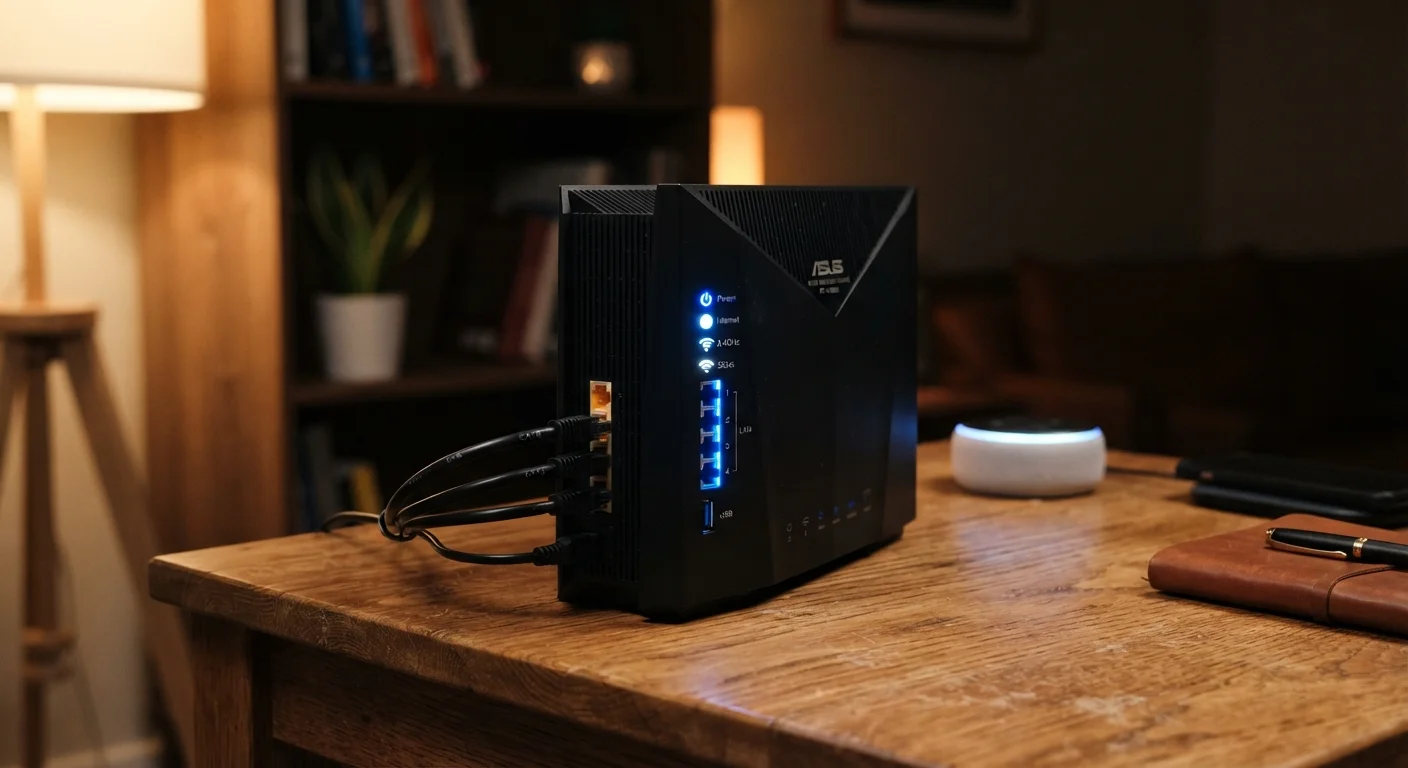
Photo credit: ResultsPoint.net | Find The Required Information
In this article
Your router is the front door to your home network. These practical steps help you secure it against uninvited guests and common vulnerabilities.
Key Takeaways
- The default password that came with your router is one of the easiest things an attacker can exploit.
- Updating your router's firmware closes security holes that manufacturers have already identified and patched.
- A guest network keeps visitors and smart home devices off your main network where sensitive data lives.
- WPA3 or WPA2 encryption is the minimum standard your Wi-Fi should be using right now.
- Disabling remote management removes an access point most home users never need.
Why Your Router Deserves More Attention
Most people spend more time picking a Netflix show than they do thinking about their router's security settings. That's understandable — routers are easy to ignore once they're plugged in. But your router is the front door to every device in your home: your laptop, your phone, your TV, your security cameras, and anything else connected to the internet.
If someone gains access to your Wi-Fi network, they can potentially intercept your traffic, access shared files, or use your connection to cover their tracks online. The good news is that locking things down doesn't require any technical background. These steps take less than an hour and make a genuine difference.
For a broader review of your digital security habits, our annual digital security checkup covers passwords, accounts, and more in one place.
What you will need
Step-by-Step: Securing Your Home Wi-Fi
Work through these steps in order. You'll need a laptop or desktop connected to your home network, and about 20–45 minutes of uninterrupted time.
Log into your router's admin panel
Open a web browser and type your router's IP address into the address bar — not the search bar. Press Enter. You'll see a login page. Enter the admin username and password. If you've never changed these, check the sticker on the side or bottom of your router.
Change the admin username and password
Default router credentials like admin/admin or admin/password are publicly known. Find the administrator account settings (often under Administration or Management) and create a unique, strong password. A passphrase — three or four unrelated words strung together — is easy to remember and hard to guess.
Set your Wi-Fi encryption to WPA3 or WPA2
Look for the wireless security settings, usually under Wireless or Wi-Fi. Set the security protocol to WPA3 if your router supports it, or WPA2 at minimum. Avoid WEP or WPA — these older standards have known weaknesses and should not be used.
Change your Wi-Fi network name (SSID) and password
Your network name (called an SSID) shouldn't broadcast your address, your ISP, or your router's brand — all of which help an attacker narrow their approach. Choose a name that gives nothing away. Then set a strong Wi-Fi password distinct from your admin password.
Update your router's firmware
Firmware is the software built into your router. Look for a Firmware Update or Software Update option, usually under Administration or Advanced. Install any available updates. Some newer routers can be set to update automatically — enable that option if it exists.
Set up a separate guest network
Most modern routers let you create a guest Wi-Fi network — a separate connection that gives internet access without reaching the rest of your home network. Enable it for visitors and consider putting smart home devices (TVs, thermostats, cameras) on it too, keeping them isolated from computers where you store sensitive information.
Disable remote management
Remote management lets someone log into your router's admin panel from outside your home network. Almost no home user needs this, and it represents an unnecessary exposure. Find the setting — often labeled Remote Access or Remote Management — and turn it off.
Check What's Connected to Your Network
Most router admin panels include a section showing all currently connected devices. Scan the list and look for anything you don't recognize. An unknown device doesn't always mean something sinister — it could be a forgotten tablet or a neighbor's device that connected years ago — but it's worth investigating. Changing your Wi-Fi password will disconnect everything and force legitimate devices to reconnect.
Common Mistakes That Undermine Your Security
Even after making these changes, a few habits can quietly undo your progress. Sharing your Wi-Fi password freely with visitors, for example, means those devices now have ongoing access to your network — even after they've left. Using a guest network for visitors solves this cleanly.
Skipping router updates is another common gap. Most routers don't update themselves automatically, so manufacturers' security patches sit unused until someone manually installs them. Small security oversights compound quickly — this is a good example of that.
Finally, keep in mind that home network security and public network security are different problems. If you frequently work from coffee shops or airports, public Wi-Fi carries its own distinct risks that home settings don't address. And if you travel internationally, protecting your data on the road requires additional steps beyond what you do at home.
When to Consider Replacing Your Router
Routers more than five or six years old may no longer receive firmware updates from the manufacturer, meaning known security vulnerabilities will remain permanently unpatched. If your router is that old and updates have stopped, replacing it is a reasonable step. Check your manufacturer's website to see whether your model still receives active support.

Author
Tech Editorial Team
Tech Editorial Team is the collective byline for our editorial team and contributor network. Articles published under this byline or an editorial pen name are researched, written, and reviewed according to our editorial standards for clarity, consistency, and independence before publication.
View all articles →