
What "HTTPS" and the Padlock Icon Actually Tell You
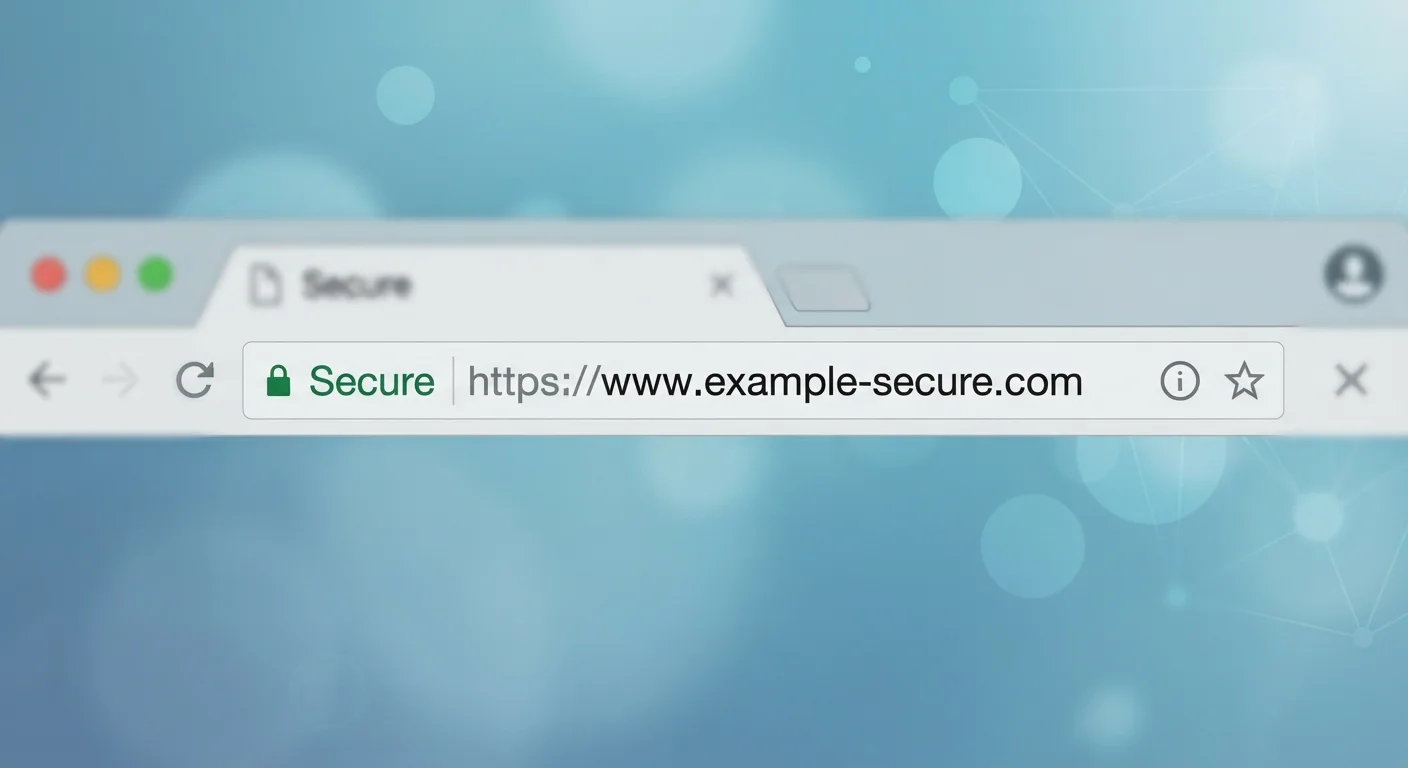
Photo credit: ResultsPoint.net | Find The Required Information
In this article
The padlock in your browser's address bar signals encryption — but not trustworthiness. Understand exactly what HTTPS does and doesn't protect.
Key Takeaways
- HTTPS encrypts your connection to a website — it does not guarantee the site itself is safe or legitimate.
- Scammers and phishing sites can and do use HTTPS, so the padlock is not a trust badge.
- A missing padlock on any page where you enter personal data is a serious red flag.
- HTTPS protects data in transit but doesn't protect you from malware, bad site owners, or data breaches.
- Always verify the full web address, not just the padlock, before entering sensitive information.
The Padlock Doesn't Mean What Most People Think
For years, browsers displayed a green padlock next to 'https://' in the address bar, and the message consumers absorbed was simple: padlock = safe. Security campaigns reinforced it. The reality is more complicated — and the confusion leaves a lot of people vulnerable.
The padlock signals exactly one thing: the data moving between your browser and that website is encrypted. It's a statement about the plumbing, not about who owns the building. A well-run bank's website has it. So does a convincing phishing page designed to steal your login credentials.
This distinction matters more now than ever. According to the Anti-Phishing Working Group, the majority of phishing sites use HTTPS, precisely because attackers know it gives visitors false confidence. Understanding what HTTPS actually does — and doesn't do — is one of the most practical online safety habits you can develop.
A Note on Browser Changes
Google removed the traditional padlock icon from Chrome in 2023 and replaced it with a generic settings icon, citing research that the padlock gave users a false sense of security. Firefox and other browsers have made similar adjustments. The underlying HTTPS encryption still works the same way — the change was about not overstating what the icon means.
What HTTPS Actually Does
When you connect to an HTTPS site, your browser and the website's server go through a quick handshake and agree on an encryption key. From that point on, all data passing between them is scrambled. Even if someone intercepts it — say, by lurking on the same coffee shop Wi-Fi network — they see only meaningless characters, not your password or credit card number.
This is sometimes called protection of data in transit. It's genuinely valuable. Before HTTPS was widespread, it was relatively easy for an attacker on the same network to snoop on unencrypted web traffic. HTTPS closed that gap for most everyday browsing. For more on the risks of shared networks, see why public Wi-Fi is riskier than it looks.
82%+
Phishing sites using HTTPS
The Anti-Phishing Working Group has reported that the large majority of phishing sites observed operate over HTTPS, exploiting user trust in the padlock icon.
~100%
Top websites now using HTTPS
Google's Transparency Report consistently shows that nearly all traffic to major websites is now served over HTTPS, making it the standard rather than the exception.
What HTTPS Cannot Do
HTTPS says nothing about the intentions or integrity of the people who run the website. It doesn't tell you whether:
- The site is a phishing clone designed to mimic your bank.
- The company behind it stores your data carelessly and will get breached.
- The site delivers malware through downloads or ads.
- The domain is a typo of a legitimate site (e.g., 'paypa1.com' instead of 'paypal.com').
Think of it like a sealed envelope. HTTPS seals the envelope so no one tampers with it en route — but if the recipient is a con artist, sealing the envelope didn't help you. This is one of several online privacy myths that keep people exposed worth understanding.
Check the Full Domain, Not Just the Padlock
Before entering any sensitive information, glance at the entire web address — not just the padlock. Confirm the domain matches the site you intended to visit, including the spelling and the ending (e.g., '.com' vs. '.net'). Getting into this two-second habit catches a wide range of phishing attempts before they do any damage.
How to Use This Knowledge Practically
Here's a simple mental model: HTTPS is necessary but not sufficient for a site to be safe. Use it as a baseline check, not a seal of approval.
When you should always see HTTPS: any page where you type a password, enter payment details, fill out a form with personal information, or log into an account. If that page shows HTTP only, leave immediately — your data could be intercepted.
What to do beyond checking the padlock: Carefully read the full domain name in the address bar. Fraudulent sites often use domains that look similar to legitimate ones at a quick glance. If you reached the page by clicking a link in an email or text you weren't expecting, verify the site directly by typing its address yourself.
This habit is especially valuable when traveling. Logging into financial accounts over unfamiliar networks introduces extra risk — see how to protect your data when you travel for a fuller picture.
Frequently Asked Questions

Author
Tech Editorial Team
Tech Editorial Team is the collective byline for our editorial team and contributor network. Articles published under this byline or an editorial pen name are researched, written, and reviewed according to our editorial standards for clarity, consistency, and independence before publication.
View all articles →