
Password Managers: What They Are and How They Actually Work
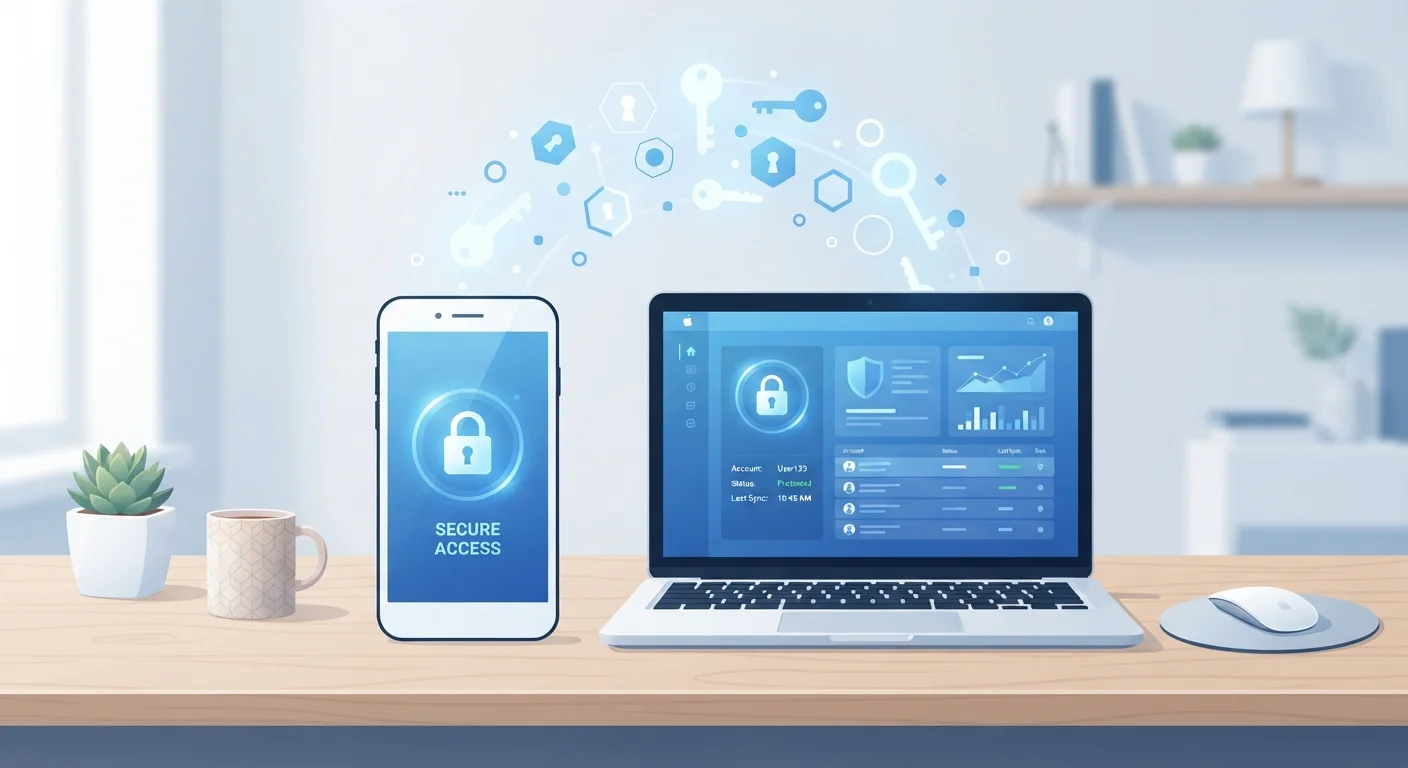
Photo credit: ResultsPoint.net | Find The Required Information
In this article
A clear explanation of what password managers do, how they store your credentials securely, and what to consider before choosing one.
Key Takeaways
- A password manager stores all your login credentials in an encrypted vault protected by one master password.
- Strong encryption means even the service provider typically cannot read your stored passwords.
- Password managers can generate long, random passwords so you never have to reuse weak ones.
- There are cloud-based, local, and browser-built-in options, each with different trade-offs.
- Pairing a password manager with two-factor authentication gives your accounts much stronger protection.
What Is a Password Manager?
A password manager is an app or service that acts as a secure digital safe for your login credentials. Instead of trying to remember a unique password for every account you have — which security experts consistently recommend — you remember just one strong master password that unlocks the safe. The manager handles the rest.
Once set up, the tool fills in your username and password automatically when you visit a website or open an app. It can also create long, random passwords for you on the spot, so each account gets something genuinely unique. That eliminates one of the most common security problems people face: reusing the same password everywhere.
Master password
The single passphrase you use to unlock your password manager. Everything else inside is protected by this one credential, so it needs to be strong and unique.
Encryption
A process that scrambles data into an unreadable format. Only someone with the correct key — in this case, your master password — can unscramble and read it.
Zero-knowledge architecture
A design where the password manager company never has access to your unencrypted data. Your vault is decrypted only on your own device.
Vault
The secure container inside a password manager where all your saved usernames, passwords, and other credentials are stored.
Password generator
A built-in tool in most password managers that creates long, random passwords automatically, so you do not have to come up with strong ones yourself.
Two-factor authentication (2FA)
A second verification step — such as a code sent to your phone — required on top of a password to log into an account.
How Password Managers Store Your Data Securely
The core of any password manager is encryption — the process of scrambling data so it is unreadable without the right key. When you save a password, the manager encrypts it using your master password as the key. Even if someone broke into the company's servers, they would find only scrambled data they cannot use.
Well-regarded managers use an approach called zero-knowledge architecture. This means the service never has access to your master password or the decrypted contents of your vault. Only your device decrypts the data, and only after you supply the correct master password. The company cannot hand your passwords to anyone — including law enforcement — because it genuinely does not have them.
Your Master Password Is the Whole Game
Because zero-knowledge encryption means the provider cannot recover your vault, your master password is the single most critical thing to protect. Do not reuse it anywhere else, do not share it, and make sure it is long enough to resist guessing. A passphrase made of four or more random words is both strong and easier to remember than a string of random characters.
Pairing your password manager with two-factor authentication adds another layer: even if someone gets your master password, they still cannot open your vault without a second verification step.
Types of Password Managers
Not all password managers work the same way. Understanding the main types helps you pick an approach that fits your habits.
- Cloud-based managers store your encrypted vault on remote servers and sync it across all your devices. You can access your passwords from your phone, laptop, or tablet seamlessly.
- Local (offline) managers keep your vault as a file stored only on your device or a USB drive you control. There is no syncing service involved, which some people prefer for privacy — but losing the file means losing your passwords.
- Browser-built-in managers are the password savers inside Chrome, Safari, Firefox, and Edge. They are free, easy, and work well for basic use, but they are tied to that browser and typically lack advanced security features.
Start Simple, Then Build Up
If the options feel overwhelming, start with your browser's built-in password manager — it is already there and costs nothing. Once you are comfortable with the concept of a vault and auto-fill, you can always migrate to a standalone option with more features. Getting started matters more than getting it perfect immediately.
What to Consider Before Picking One
No single option is right for everyone. Here are the practical factors worth weighing:
- Encryption standard
- Look for AES-256 encryption and zero-knowledge architecture — these are widely considered strong baselines in the industry.
- Cross-device support
- If you use both a phone and a computer, confirm the manager syncs across both platforms without friction.
- Recovery options
- Find out what happens if you forget your master password before you commit. Some managers cannot help you recover a lost vault.
- Two-factor authentication support
- A good manager should let you protect the vault itself with two-factor authentication.
- Audit history and transparency
- Some providers publish third-party security audits. This openness is a good sign that they take security seriously.
When you are ready to review your overall account security holistically, the annual digital security checkup guide walks through a broader set of steps beyond just passwords.
Getting Started: Practical First Steps
Getting started is simpler than most people expect. Here is a sensible approach for beginners:
- Choose a type. If you want something free and low-effort, your browser's built-in manager is a reasonable starting point. If you want cross-device syncing and stronger features, look at well-established standalone options.
- Create a strong master password. Use a passphrase — four or more unrelated words strung together. Write it down and store that paper somewhere physically safe until you have it memorized.
- Import or add your existing accounts. Many managers let you import passwords saved in your browser. For anything not imported, add credentials as you log in naturally over the next few weeks.
- Let the manager generate new passwords. Whenever you create a new account or update an old one, use the built-in generator. Aim for passwords that are at least 16 characters long.
- Enable two-factor authentication on the manager itself. This protects your vault even if your master password is ever exposed. See our explainer on why two-factor authentication matters if you are new to the concept.
Security is rarely about any single tool — it is about building habits that work together. A password manager is one of the highest-impact changes an everyday user can make.
Frequently Asked Questions

Author
Tech Editorial Team
Tech Editorial Team is the collective byline for our editorial team and contributor network. Articles published under this byline or an editorial pen name are researched, written, and reviewed according to our editorial standards for clarity, consistency, and independence before publication.
View all articles →