
What Happens When You Delete an App — and What Stays Behind
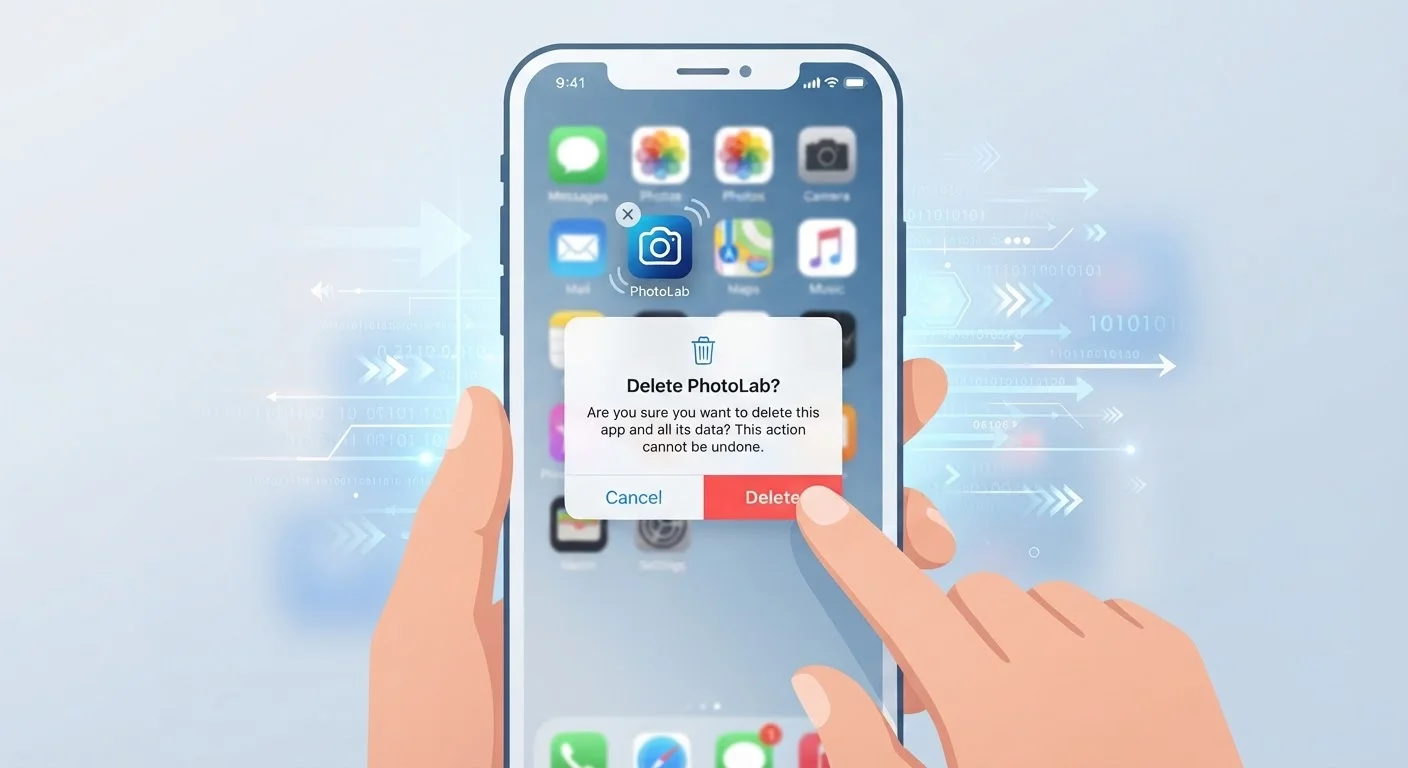
Photo credit: ResultsPoint.net | Find The Required Information
In this article
Deleting an app doesn't always erase everything. Here's what data typically remains on your device or in the cloud after you hit uninstall.
Key Takeaways
- Deleting an app removes the software but often leaves data behind on your device or in the cloud.
- App accounts, purchase history, and saved preferences usually survive an uninstall.
- On Android, some residual folders and files can remain in local storage after deletion.
- To fully remove your data, you typically need to delete your account within the app before uninstalling.
- Cloud services like Google or Apple may retain backups of app data even after the app is gone.
What Actually Happens When You Hit Uninstall
When you delete an app, your phone removes the software — think of it like taking a book off a shelf. But the notes you wrote in the margins? Those might still be in a drawer somewhere. The app's local files, settings files, and cached data don't always disappear with it.
On iPhone, iOS does a reasonably thorough job of clearing local app data when you delete an app outright. If you use the "Offload App" option instead, it deliberately keeps your data while removing the program — useful if you plan to reinstall later, but it means data is still sitting on your device.
On Android, behavior varies more. The app itself is removed, but some apps write data to shared storage folders — like the Downloads or Documents folder — that persist after uninstall. You may need to manually browse your file manager to find and delete these leftover folders.
iOS vs. Android: A Key Difference
Apple's iOS generally clears local app data more consistently on deletion than Android does. Android's more open file system means some apps can write to shared storage locations that survive an uninstall. If you're on Android and want a clean slate, manually checking your file manager is a good habit.
What Stays in the Cloud
This is where most people are surprised. Your account — and everything in it — typically lives on the company's servers, not just on your phone. Delete a social media app and your profile, photos, messages, and history are all still there, waiting for you to log back in.
The same applies to app-connected cloud storage. Google, Apple, and many third-party apps back up app data automatically. Even after you delete an app, that backup may persist until you actively delete it from your cloud storage settings.
80%+
Apps that transmit data to third parties
Research published by the International Computer Science Institute found that the large majority of free Android apps send data to third-party services, including advertising and analytics platforms.
Varies
How long companies retain deleted account data
Retention periods differ widely by company and jurisdiction; many privacy policies state data may be kept for 30–90 days after an account deletion request before being fully purged.
If you want to wipe your data from a company's servers, the path usually runs through your account settings — not your phone's delete button. Many apps now include a "Delete Account" option, often buried in Settings > Privacy or Settings > Account. Some companies require you to submit a request through their website.
The Data You Might Not Think About
Beyond your obvious account content, apps often leave behind less visible data traces:
- Login tokens: Some apps store authentication tokens locally that outlast the uninstall on certain Android devices.
- Permissions granted: On Android, permissions are typically reset on uninstall. On older Android versions or certain skins, this wasn't always guaranteed — another reason to keep your OS updated.
- Third-party data brokers: If the app shared your data with advertising partners or analytics platforms, deleting the app doesn't claw that information back.
- Backup files: iPhone backups (iCloud or local) and Android backups (Google One) can snapshot app data. That data travels with the backup even after you've deleted the app.
For a broader look at what your phone knows about you, the privacy settings walkthrough covers the controls worth checking right now.
Delete Your Account Before You Uninstall
The single most effective step for removing your data is to delete your account from within the app — before you hit uninstall. Once the app is gone, navigating account deletion often requires finding the company's website or contacting support, which adds unnecessary friction.
How to Delete an App More Completely
If your goal is a clean break — not just clearing screen space — here's the general approach that works across most platforms:
- Delete your account first. Do this before uninstalling, while you still have easy access to the app's settings. Look for options like "Delete Account," "Close Account," or "Request Data Deletion."
- Clear cached data (Android). Go to Settings > Apps > > Storage and tap "Clear Cache" and "Clear Data" before uninstalling.
- Remove cloud backups. Check your iCloud or Google account settings for app data backups and delete them separately.
- Check your file manager. On Android especially, look for leftover folders in your internal storage with the app's name.
If storage is a recurring concern, it helps to understand what's really eating up space — our explainer on full storage warnings breaks it down plainly.
Frequently Asked Questions

Author
Tech Editorial Team
Tech Editorial Team is the collective byline for our editorial team and contributor network. Articles published under this byline or an editorial pen name are researched, written, and reviewed according to our editorial standards for clarity, consistency, and independence before publication.
View all articles →