
Smartphone Storage Is Full: What That Warning Actually Means
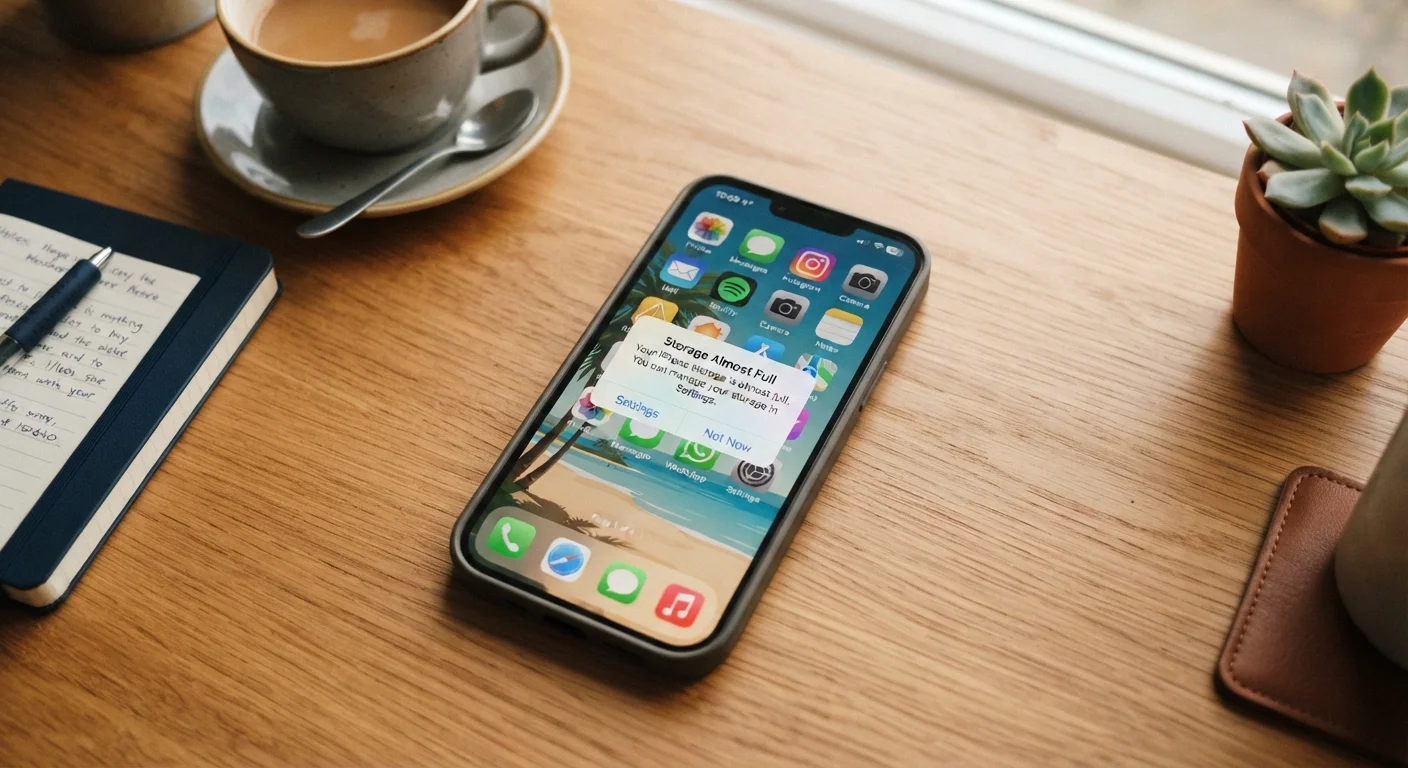
Photo credit: ResultsPoint.net | Find The Required Information
In this article
Decoding the "storage almost full" alert — what's taking up space, what's safe to delete, and how to free up room without losing anything you care about.
Key Takeaways
- Photos and videos are almost always the biggest storage culprits on any smartphone.
- App cache and offline downloads quietly pile up over time without you noticing.
- Deleting an app removes its data too — but some data may linger in the cloud.
- Moving photos to a cloud service frees on-device space without losing your pictures.
- Your phone's built-in storage analyzer tells you exactly what's eating the most space.
What the Warning Is Actually Telling You
When your phone flashes a storage warning, it's not a sign your phone is broken or dying. It simply means the fixed amount of space built into the device is running low — and your phone needs breathing room to function properly. Apps need temporary workspace to run, the camera needs room to save photos, and the operating system itself needs free space to perform updates and routine tasks.
Most phones start warning you when you've used about 80–90% of your total storage. At that point, things can start going wrong: photos won't save, apps crash unexpectedly, and your phone may feel sluggish. Understanding what is filling that space is the first step to fixing it — and your phone has tools built in to show you exactly that.
On an iPhone, go to Settings > General > iPhone Storage. On Android, look for Settings > Storage. Both show a color-coded breakdown by category, so you can see at a glance whether photos, apps, or something else is the main issue.
The Usual Suspects: Where Your Space Actually Goes
Most people are surprised when they see the breakdown. Here's where storage typically disappears:
- Photos and videos: The single biggest consumer for most users. A few dozen videos shot in high resolution can fill gigabytes quickly.
- App data and cache: Apps like streaming services, maps, and social platforms store temporary files — called cache — to load faster. These files accumulate silently over months.
- Messaging apps: Every photo, video, GIF, and voice note sent or received in a group chat is stored locally on your phone unless you actively clear it.
- Downloaded content: Podcasts, music, and shows downloaded for offline listening add up fast and are easy to forget about.
- Old app data: Even apps you rarely use can balloon in size over time as they accumulate data in the background.
~3–4 GB
Space one hour of 4K video uses
Based on typical 4K video file sizes recorded at standard frame rates on modern smartphones.
64 GB
Common entry-level phone storage
Many budget and mid-range smartphones ship with 64 GB of storage, which fills quickly with photos and apps.
10–15%
Recommended minimum free storage
Keeping roughly 10–15% of your phone's capacity free is a widely cited guideline for maintaining smooth performance.
For a deeper look at what actually stays on your device after you remove an app, see what happens when you delete an app.
How to Free Up Space Without Losing What You Care About
The goal isn't to delete everything — it's to remove what you don't need while protecting what matters. Here are practical steps that work for most people:
Back Up Before You Delete Anything
Before clearing photos or app data, take a moment to confirm your backup is current. On iPhone, check that iCloud Backup has run recently under Settings. On Android, verify Google Photos or your chosen backup service is up to date. A current backup means you can always recover something if you accidentally delete it.
- Back up your photos first. Move photos and videos to a cloud service or your computer before deleting anything. Once your pictures are safely backed up, you can remove local copies from the phone to reclaim significant space.
- Clear app cache. In your phone's storage settings, tap into individual apps and look for a 'Clear Cache' option. This is safe and won't remove your personal data.
- Delete downloaded media. Go into your podcast, music, and video apps and remove offline downloads you've already watched or listened to.
- Audit your messaging apps. Delete large media-heavy conversations, or use the app's built-in media-clearing tools if available.
- Remove apps you haven't opened in months. Be honest — if you haven't used an app in six months, you probably don't need it taking up space.
You might also want to review which apps have access to your storage and other permissions — your phone's privacy settings covers exactly how to do that.
When Deleting Isn't Enough
If you've done a thorough cleanup and your phone still feels perpetually full, you may have genuinely outgrown its storage capacity. At that point, a few options exist: use cloud storage more aggressively for files and media, take advantage of any microSD card slot your device may have (common on many Android phones), or factor storage capacity into your next phone purchase.
One thing to keep in mind: a phone running consistently at 95–100% capacity will degrade in performance over time. Keeping at least a few gigabytes free — a general rule of thumb is around 10–15% of total capacity — helps the phone run smoothly.
And if app notifications are part of what's cluttering your phone experience, the notifications you can safely turn off is a useful next read.
Frequently Asked Questions

Author
Tech Editorial Team
Tech Editorial Team is the collective byline for our editorial team and contributor network. Articles published under this byline or an editorial pen name are researched, written, and reviewed according to our editorial standards for clarity, consistency, and independence before publication.
View all articles →