
App Permissions: What Each One Grants and When to Be Cautious
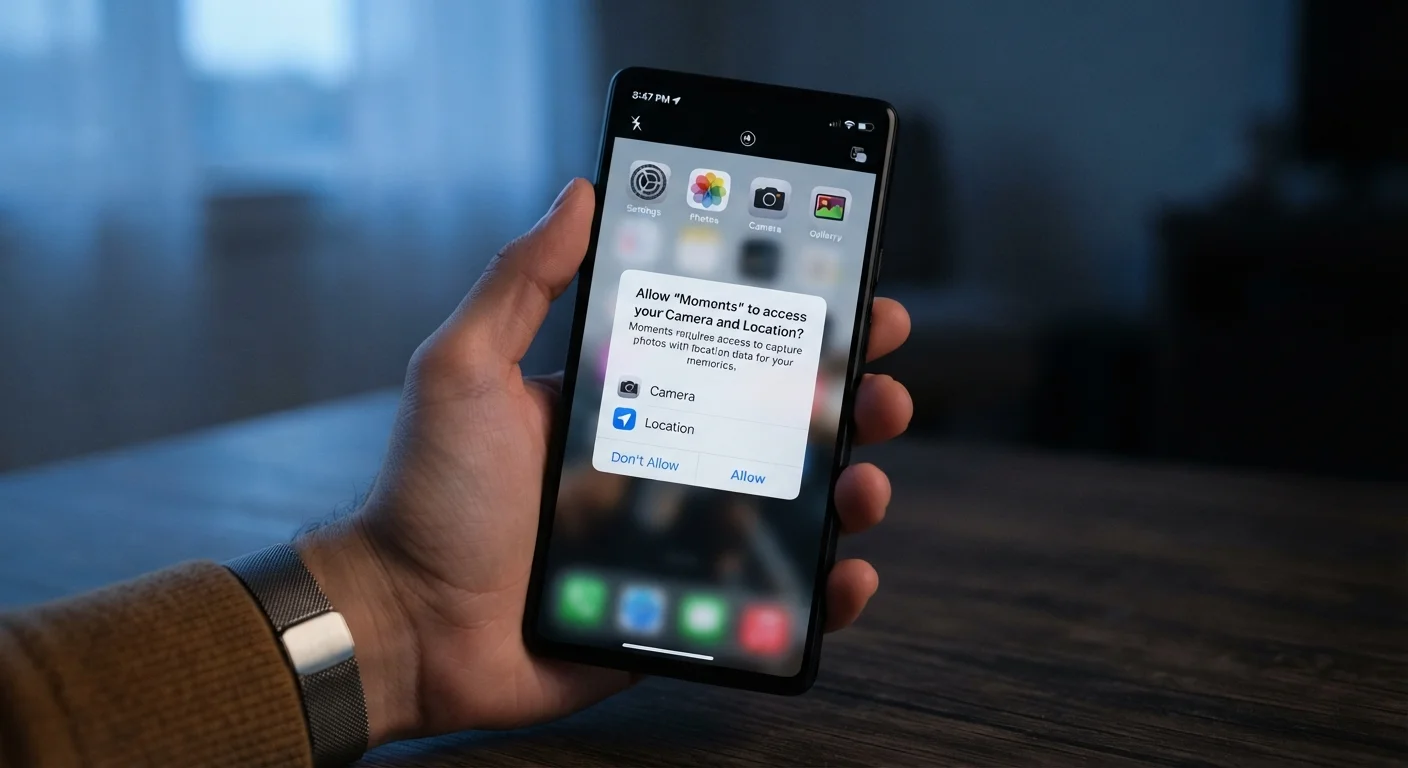
Photo credit: ResultsPoint.net | Find The Required Information
In this article
Camera, microphone, location, contacts — a plain-language guide to what app permissions actually allow and which requests should give you pause.
Why App Permissions Matter
Every time you install an app and it asks to access your camera, location, or contacts, that pop-up isn't just a formality. It's the app asking for a key to part of your digital life. Tapping "Allow" hands over real access — and some apps request far more than they actually need to do their job.
Understanding what each permission actually unlocks helps you make smarter choices without having to trust blindly. Both iOS and Android now give users the ability to grant or deny permissions individually, and even to limit access (for example, sharing only your approximate location instead of your precise GPS coordinates). See how iOS and Android handle permissions differently for a practical comparison.
| Permissions controlled by user | Camera, microphone, location, contacts, storage, Bluetooth, notifications |
| Location options available | Precise, approximate, or only while using the app (Available on both iOS and Android) |
| Can permissions be revoked? | Yes — at any time in device settings, without uninstalling the app |
| Highest-risk permissions | Microphone, camera, contacts, continuous background location |
| Where to review permissions | Settings → Privacy (iOS) or Settings → Apps → Permissions (Android) (Menu names may vary slightly by device and OS version) |
What the Most Common Permissions Actually Do
Here's a plain-language breakdown of the permissions you'll encounter most often and what granting each one actually means:
- Camera: The app can activate your device's camera and capture photos or video. Necessary for apps like video calling or document scanning — but a flashlight app has no legitimate reason to ask for this.
- Microphone: The app can record audio through your device's microphone. Voice assistants and podcast apps need this; a simple calculator does not.
- Location: The app can read your device's geographic position. Most platforms let you choose between precise location (exact GPS), approximate location (general area), or "only while using the app" — that last option is often the safest default.
- Contacts: The app can read the names, phone numbers, and email addresses stored on your device — including other people's information, not just your own. Messaging apps often need this; a recipe app does not.
- Storage / Photos: The app can read or write files on your device. Modern smartphones now let you grant access to specific photos rather than your entire library.
- Bluetooth: The app can communicate with nearby Bluetooth devices. Legitimate for fitness trackers and wireless speakers, but be cautious when a retail or coupon app requests it — it can be used to track your physical location in stores.
- Notifications: The app can send you alerts. This isn't a privacy risk per se, but it can affect your focus. See which notification permissions are worth turning off.
App permission
An explicit approval you grant that allows an app to access a specific feature or data on your device, such as your camera or location. Without permission, the app cannot access that resource.
Precise location
GPS-level data that reveals your exact geographic coordinates, often accurate to within a few meters. This is more sensitive than approximate location and should be granted sparingly.
Background access
Permission that allows an app to use a resource — like your location or microphone — even when the app is not open on your screen. This carries higher privacy risk than "only while using" access.
Permission audit
A review of which apps on your device have been granted access to sensitive resources. Both iOS and Android include built-in tools in settings that display this information.
Data broker
A company that collects personal information — including location history and contact data — from various sources and sells it to advertisers or other third parties, often without the individual's direct awareness.
Red Flags: When a Permission Request Doesn't Add Up
The single most useful question to ask before tapping "Allow" is: Does this app actually need this to work? A mismatch between an app's purpose and what it's requesting is your clearest warning sign.
Android and iOS Handle This Differently
On iOS, apps must explain why they need a permission before the system prompt appears — a requirement called "purpose strings." Android has expanded similar protections in recent versions, but the experience varies more across device manufacturers. If a permission prompt appears with no explanation, that absence itself is worth noticing.
A few patterns worth watching for:
- Games requesting contacts or call logs. There's rarely a legitimate reason. This data is sometimes harvested to build marketing profiles.
- Free utility apps requesting precise location continuously. Selling location data to data brokers is a known revenue stream for some free apps.
- New or obscure apps requesting multiple sensitive permissions at once. Reputable apps typically explain why they need access before asking.
- Requests appearing outside of normal context — for example, a permission prompt appearing when you open a settings screen rather than when you use a relevant feature.
If you've already granted permissions you're uncomfortable with, you can revoke them at any time in your phone's settings without uninstalling the app. For a guided walkthrough, see your phone's privacy settings explained room by room.
Practical Rules for Managing Permissions
You don't need to become a security expert to stay in control. A few habits cover most of the risk:
- Default to "deny" for sensitive permissions (microphone, camera, contacts) unless the app's core function clearly requires them.
- Choose "only while using the app" for location access whenever the option is available.
- Do a periodic permission audit. Both iOS and Android show a full list of which apps have which permissions in the privacy or app settings menu. Reviewing this once every few months takes about five minutes.
- Check before you install. App store listings often show requested permissions before you download. An unusual list is a reason to pause.
- Traveling? Permissions become more sensitive when you're on unfamiliar networks or at border crossings. Protecting your data while traveling covers steps specific to that context.
Granting a permission isn't permanent and it's not all-or-nothing. Think of each one as a setting you can adjust, not a one-time decision you're locked into.

Author
Tech Editorial Team
Tech Editorial Team is the collective byline for our editorial team and contributor network. Articles published under this byline or an editorial pen name are researched, written, and reviewed according to our editorial standards for clarity, consistency, and independence before publication.
View all articles →